










October 1, 2026 4 min read
Video Training Software: AI, Screen Recording, or Animation?
Industry:
Solution:
You pick a video creation tool, build your first training module, then realize it won’t export to your LMS. No completion tracking. No audit trail when compliance asks.
This happens because teams evaluate video software by features, not delivery workflow. Video training software is divided into three distinct types: screen recording, AI avatar, and animation. Each type of instructional video software serves different training needs. None of them requires the buyer to be a video professional. But understanding which one fits your situation is what separates a successful purchase from months of rework and compliance headaches.
Main Takeaways
- Video training software falls into three categories: screen recording for software tutorials, AI avatars for scalable multi-language policy updates, and animation for abstract processes that have no live footage to capture.
- Match the tool to the training job before comparing features. Starting with the feature list is what produces tools that don’t connect to how you actually deliver and track training.
- Every format follows the same six-step workflow (plan, script, produce, edit, review, publish), but production and export are where tool choice changes the outcome most.
- AI avatars are the wrong choice for safety demonstrations that need real-environment footage, emotionally sensitive topics, and leadership communication where employees expect a real person.
- SCORM or xAPI export is what makes completions trackable. A plain MP4 confirms the file was opened but cannot prove someone watched it through or passed an embedded quiz.
The Ultimate Checklist to Uplevel Your Training Program
A practical checklist for auditing what your training program delivers and where the gaps are.
Get the Checklist
Video Training Software Decision Matrix: Match Your Use Case to the Right Tool Type
Most buyers start by comparing features across tools, but the better starting point is the training job itself. Video training software falls into three categories: screen recording, AI avatar, and animation. Each one fits different training jobs.
Software walkthroughs need screen capture with cursor tracking. Scalable policy updates need AI avatars and presenters. Abstract or process-heavy topics need animated explainers. The fastest way to choose is to match your use case to the right category before comparing individual tools.
Most buyers start by comparing features across tools, but the better starting point is the training job itself: software walkthroughs need screen capture with cursor tracking, scalable policy updates need AI avatars and presenters, and abstract or process-heavy topics need animated explainers. 52% of organizations now report video as their primary training modality, with onboarding (70%) and compliance (66%) as the top use cases. Video training is effective across industries, and understanding which type works best for your situation matters. Whether you’re looking for the best training video software or software to make training videos that fits your needs, the table below maps common training needs to the category, example tools, features to look for, and LMS compatibility so you can narrow your shortlist in minutes.
Video Training Software Decision Matrix
The table below includes Use Case, Software Category, Example Tools, Key Features to Evaluate, and LMS Compatibility (native SCORM/xAPI export, limited, or indirect/MP4 only) in their related columns. With rows covering compliance updates, onboarding, software tutorials, safety demonstrations, and sales enablement.
| Use Case | Category | Key Features | LMS Compatibility |
| Compliance updates | AI avatar | Scripted presenter, multi-language, version control | Native SCORM export |
| Onboarding | Screen recording with editing, or AI avatar | Templates, chapter markers, quizzes | Native or limited, depending on tool |
| Software tutorials | Screen recording | Cursor highlighting, zoom, annotations | Varies by tool; some export SCORM natively, others MP4 only |
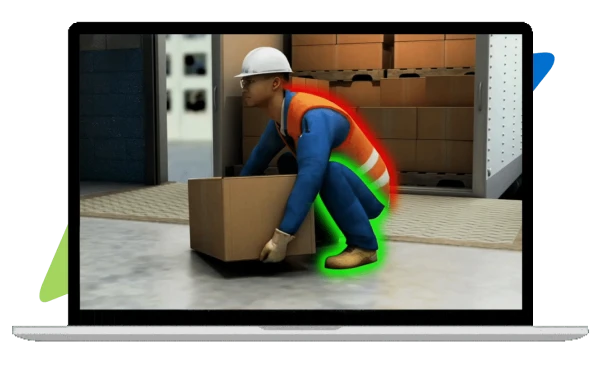
| Safety demonstrations | Human-recorded, or hybrid with animation overlay | Real-environment footage, annotations, slow-motion | Typically MP4; package separately with a SCORM wrapper |
| Sales enablement | Animation or AI avatar | Character scenes, branded templates, voiceover | Native or limited |
If your primary need is software tutorials, screen recording tools are the natural fit. If you need to push quarterly compliance updates in multiple languages at scale, AI avatar tools save the most time. If you need to explain abstract policies or processes without live footage, animation is the strongest category.
LMS compatibility is the column most buyers overlook, and it’s the one that determines whether you can track completions and produce an audit trail. Starting with the training job narrows your shortlist to tools that actually connect to how you deliver and track training. This is the step most buyers skip, and most rework traces back to it.
Choosing the right category is the first decision. But the production workflow for each category diverges at the recording step, which is where most time and cost differences emerge.
How to Create a Training Video Step by Step
The right software for creating training videos follows a six-step workflow: plan, script, produce, edit, review, and publish. However, the production step branches depending on whether you’re screen recording, generating an AI avatar video, building an animation, or combining formats. An e-learning authoring tool that fits your workflow can streamline the entire process.
6-Step Training Video Workflow
Step 1: Define the learning objective and audience. Identify the single behavior or knowledge outcome the video must achieve, and confirm which format from the decision matrix fits (screen recording, AI avatar, animation, or hybrid).
Step 2: Script and storyboard. Write a narration script or talking-point outline. For AI avatar tools, the script is the production input. For screen recording, it doubles as a click-path guide. For animation, pair the script with a scene-by-scene storyboard. Note that organizations using AI-infused video tools are 4.5× more likely to increase video creation.
Step 3: Record or generate. This is where the workflow diverges, and the best software to create training videos for your workflow will depend on which format you’re using:
- Screen recording: capture your screen with cursor tracking and webcam overlay; use zoom and annotation tools to highlight key steps.
- AI avatar: paste your script into the platform, select a presenter and language, and generate the video.
- Review pronunciation and pacing. Animation: build scenes using templates or custom assets, sync voiceover (recorded or text-to-speech), and set timing.
- Hybrid: combine live footage (e.g., a safety walkthrough) with animated overlays or AI-narrated segments for context.
Step 4: Edit and add interactivity. Trim, add chapter markers, insert quiz checkpoints if your tool supports them, and overlay callouts or captions.
Step 5: Accessibility and review. Add closed captions (auto-generated captions need human review), verify audio descriptions if required, and route the draft through subject-matter-expert review. Note that WCAG 2.1 AA is the enforceable accessibility standard for public-sector and HHS-funded entities, with compliance dates extending into 2027–2028.
Step 6: Export and publish. Export as SCORM/xAPI package for LMS tracking or as MP4 for simpler distribution. The export format you choose here determines whether completions are trackable, covered in the next section.
When AI Video Is the Wrong Choice
AI avatars and script-to-video tools save time for scalable policy updates, multi-language compliance refreshers, and standardized onboarding content where a consistent presenter tone is an advantage. But they introduce real risk in other scenarios. Safety demonstrations require real-environment footage. An avatar cannot show a proper lockout/tagout procedure on actual equipment. Emotionally sensitive topics like harassment or workplace violence require genuine emotion, and a synthetic presenter undermines trust. High-stakes leadership communication where employees expect authenticity is another poor fit. When delivering safety training, there are multiple approaches beyond just video. Can ChatGPT make a training video? ChatGPT can help draft outlines, scripts, quiz questions, and voiceover text, but it cannot record, generate, edit, publish, or track a finished training video. You still need a dedicated video tool for production and an LMS for delivery. Here’s the practical rule: if the training requires showing a physical environment, conveying genuine empathy, or building trust with a specific leader’s voice, record with a human. If the training is information-dense, frequently updated, and needs multiple language versions, AI avatars are the faster path.
The six-step workflow applies regardless of format, but the production and export steps are where tool choice has the biggest impact on quality, speed, and whether your finished video can actually be tracked in an LMS.
A finished video that can’t be assigned, tracked, and reported inside your LMS leaves compliance teams without an audit trail, and without proof that required training was completed.
From Creation to Compliance: LMS Integration, Tracking, and Audit Trails
A video learning software platform is only as useful as its connection to your LMS. This system assigns training, tracks completions, sends reminders, and produces the audit trail regulators expect.
SCORM (Sharable Content Object Reference Model) is a packaging standard that lets your LMS record who started, completed, and passed a training module. xAPI (Experience API) is a newer standard that tracks a wider range of learning activities, including mobile and offline completions. Both standards are essential to create training video software that integrates with your LMS. Here’s the difference: if you export a training video as a plain MP4 and upload it to your LMS, the system can confirm the file was accessed. But it usually cannot verify the learner watched it to completion or passed an embedded quiz. SCORM/xAPI packaging closes that gap. 79% of professional learning respondents report using an LMS, making export compatibility a baseline requirement, not a nice-to-have.
Compliance Fit Checklist
Regulated teams must verify the following:
- SCORM/xAPI export from the creation tool
- Completion tracking with pass/fail status in the LMS
- Automated assignment and deadline reminders
- Audit trail (timestamped records of who completed what and when)
- Access controls and role-based permissions
- Version control so outdated content is retired and replaced without breaking completion records
- Accessibility compliance (captions, transcripts, accessible player) aligned with WCAG 2.1 AA
- Device and browser compatibility (confirm the tool and its exported video work across the operating systems, browsers, and mobile devices your workforce actually uses, not just the vendor’s primary platform)
DOJ guidance on corporate compliance programs identifies “appropriately tailored training” and “periodic training and certification” as hallmarks of a well-designed program, along with ongoing monitoring of training completion. This raises the documentation bar for regulated industries.
Here’s the operational workflow: the creation tool exports a SCORM package, the admin uploads it to the LMS, and the system assigns training to specific roles or groups. It then sends reminders before deadlines, tracks when learners complete the video and any embedded assessment, and records completion with a timestamp. Finally, compliance managers can pull reports or export audit trails. Understanding the basics of online training helps you see how all these components connect. Vector Solutions LMS connects video training delivery, completion tracking, and compliance reporting in a single system, serving more than 24,000 client organizations and 31 million users across critical industries where audit trails are non-negotiable.
The gap between “we made a training video” and “we can prove every required employee completed it” is the LMS integration layer. Closing that gap before you purchase a creation tool saves months of rework and compliance exposure.
Where Your Training Videos Actually Get Tracked
Creating the video is half the job. See how assignment, completion tracking, and reporting come together.
Explore Vector LMS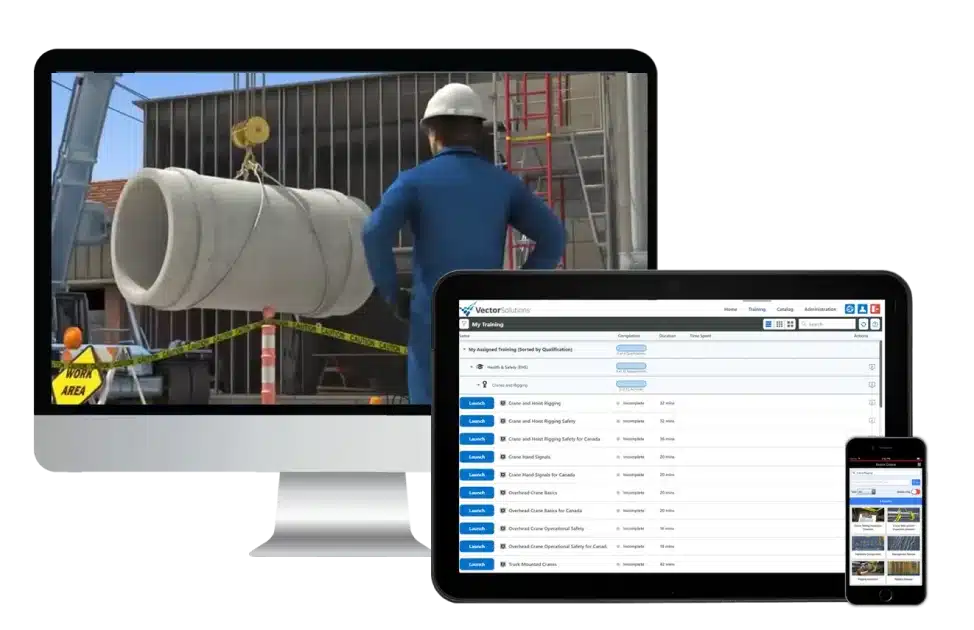
Put Your Video Training Strategy into Action with Vector Solutions
You now have a framework for choosing the best software for training videos by use case, confirming LMS compatibility before purchase, and connecting creation to the compliance tracking and audit trails your organization needs.
Vector LMS connects training delivery, completion tracking, and compliance reporting in one platform, serving more than 24,000 client organizations and 31 million users across critical industries where documentation is non-negotiable. With it, every location executes the same training on time, completions are tracked automatically, and you can pull an audit-ready report when regulators ask.
See Vector LMS in Action
Assign video training by role, track completions across locations, and produce the records auditors ask for first.
Request a Demo
FAQs About Video Training Software
Can ChatGPT Make a Training Video?
ChatGPT can help you draft outlines, scripts, quiz questions, and voiceover text, but it cannot by itself record, generate, edit, publish, or track a finished training video. You still need a dedicated video creation tool for production and an LMS for delivery and completion tracking.
How Much Does Video Training Software Really Cost at Scale?
Cost depends on the category more than the vendor. Screen recording tools run $39 to $600 per year per user. AI avatar platforms bill by video minute, starting near $29 per month. Authoring suites are the most expensive, at $1,199 to $1,749 per user per year. Enterprise tiers are custom-quoted across all three categories.
Do I Need SCORM or xAPI to Track Training Completions?
Yes, if you need to verify who completed the training and when. SCORM and xAPI are packaging standards that let your LMS record starts, completions, pass/fail status, and timestamps. A plain MP4 upload can confirm the file was accessed but usually cannot prove the learner watched it to completion or passed an embedded quiz.
When Should I Use Human-Recorded Video Instead of AI Avatars?
Use human-recorded video when the training requires showing a physical environment, conveying genuine empathy, or building trust with a specific leader’s voice. AI avatars work best for information-dense, frequently updated content that needs multiple language versions, like compliance policy updates or onboarding modules where consistency matters more than personality.